
Generic Phone Message Screen AE Template
After Effects Template — Overview and Quick Guide
A clean, lightweight phone UI you can drop into any comp and customize fast.
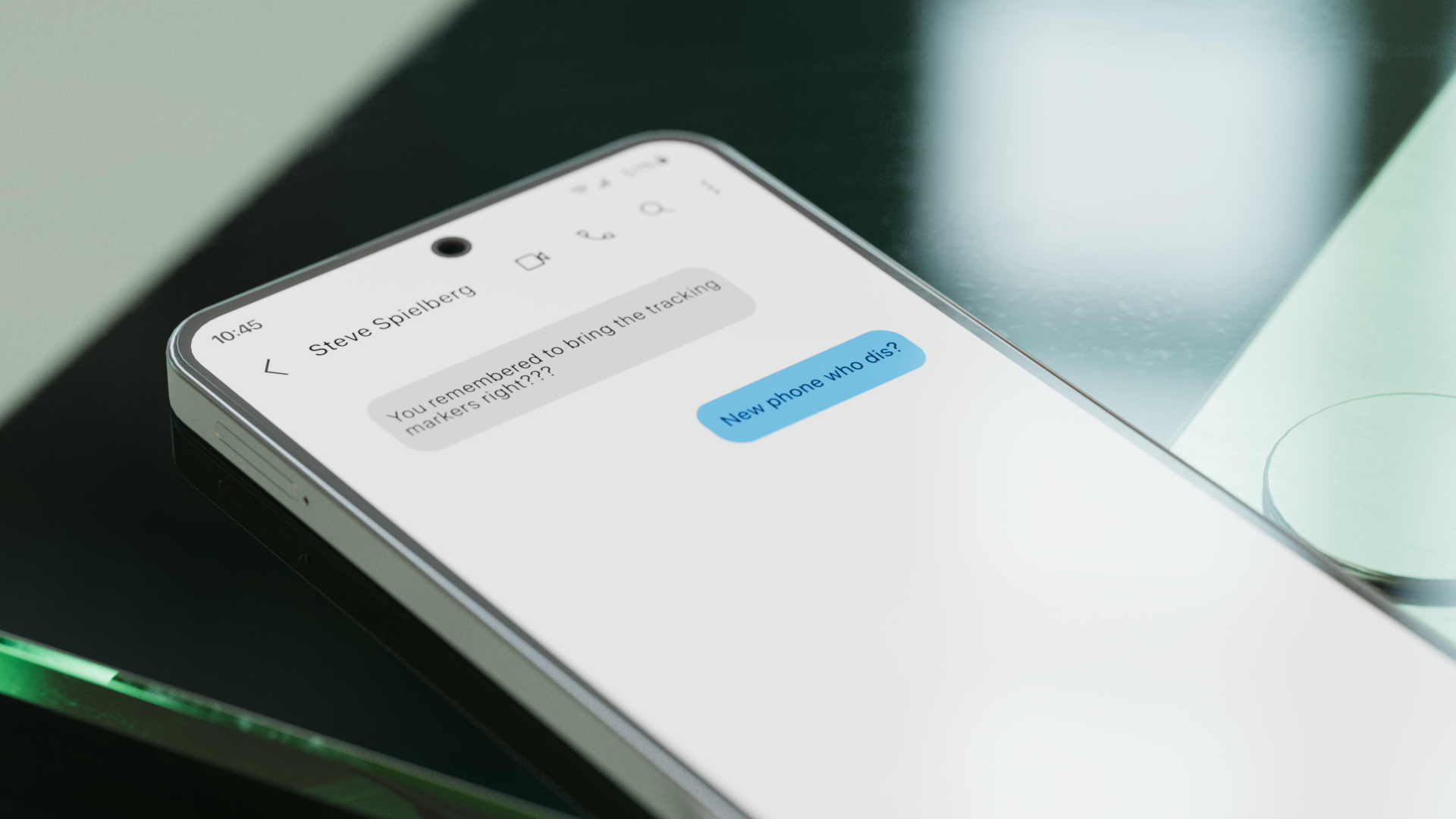
This After Effects template gives you a clean, flexible phone interface for fast, custom screen replacements.
All Vector built in After Effects so no external files to carry. Just one single AE project.
Compatible with After Effects CC 2022 and up
What’s inside
Organized AE project with expression‑driven controls
Auto‑sizing message bubbles
Expression Linked control layers
Master Color Controls
Top UI for Time, Wifi, Cell service, and Battery easily customizable
Battery fullness directly linked to percentage
UI Connected to Nulls for easily moving UI to fit any phone screen for VFX Screen Replacements
What this template is for
A quick, generic phone screen you can pop into a shot without rebuilding UI from scratch.
Useful as a full mock UI or just to borrow elements like time, Wi‑Fi, battery, and signal bars.
Built entirely with AE solids and shapes, so it’s vector, resolution‑independent, and file‑light.
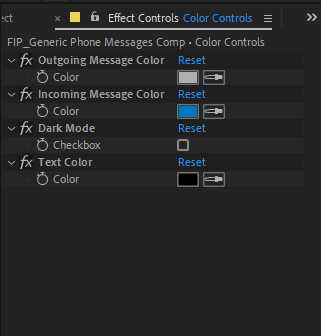
Global Color Controls
Color Controls layer is a single hub that drives UI colors via linked properties.
Outgoing bubbles color: change once to update all outgoing message bubbles.
Incoming bubbles color: same idea for incoming messages.
Dark Mode toggle: flips an adjustment layer that inverts underlying UI. Turn opacity on or off for instant light/dark styles.
Text Color: set to black for light mode or white for dark mode.
UI Controls (Top bar)
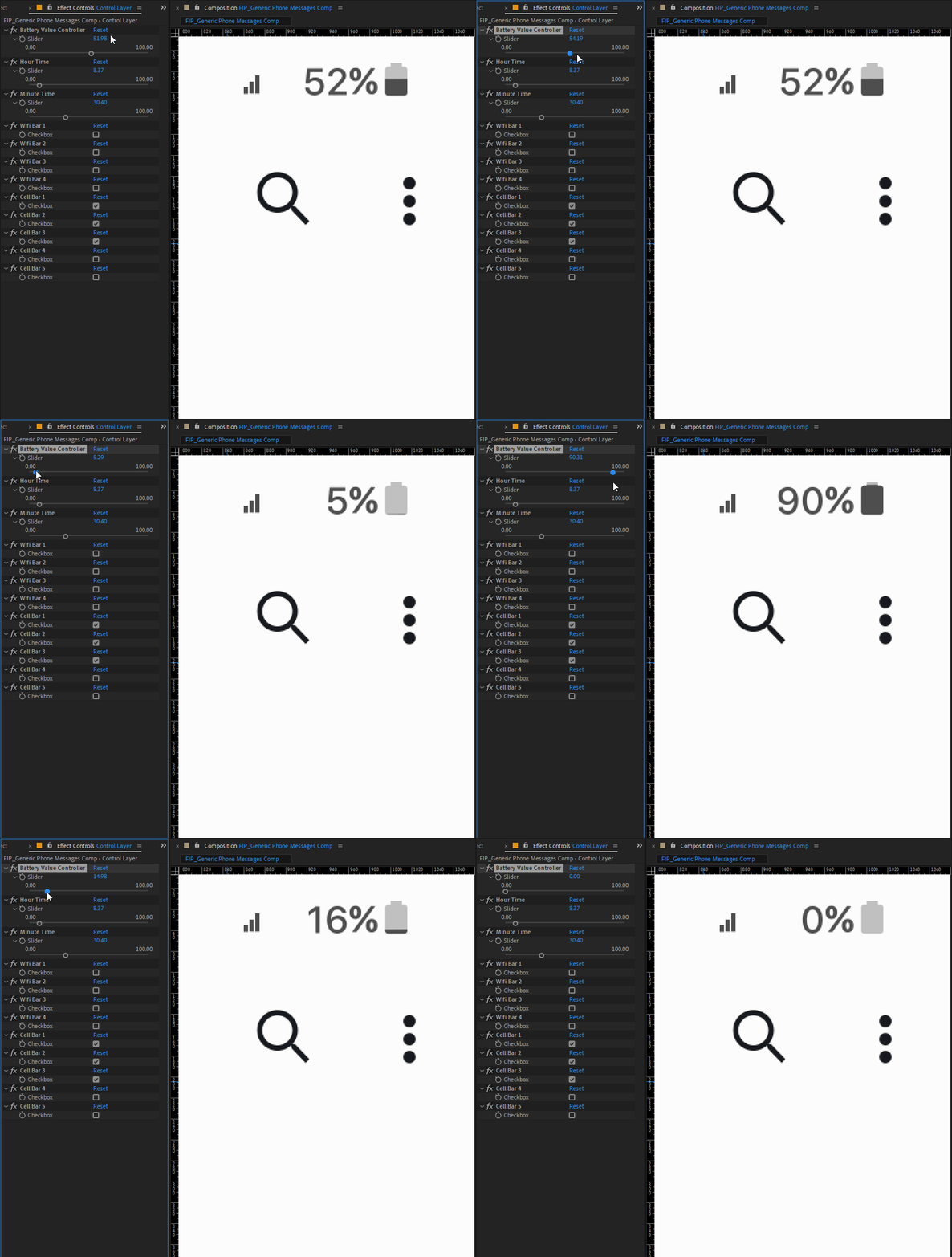
Battery Controller
Set the percentage. Displays as whole numbers and drives the fill of the battery icon in sync.
Time (Hour and Minute)
Hours clamp at 12.
Minutes clamp at 59 with whole‑number stepping, so you can scroll to a specific, consistent time without overshooting.
Wi‑Fi Bars
Checkboxes to enable bar counts. Animate on or off to simulate weak/losing signal.
Cell Bars
Same control pattern as Wi‑Fi. Toggle bar counts to match reception.
Fitting to Different Phones and Notches
Real phones vary and plates rarely match perfect aspect ratio after tracking.
Most UI groups sit under nulls so you can non‑destructively adjust layout after the screen track.
Master Scale null controls everything except the background.
Each cluster (status bar elements, bubbles, etc.) also has its own null so you can reposition or scale individually.
For notches or inset displays, move and scale the affected group to avoid occlusion.
Messages and Bubbles
Each message consists of two layers:
Bubble Text
Bubble Shape that auto‑sizes to the text via expressions
Editing text
Open the Bubble Text layer and type. The bubble auto expands to fit.
Duplicating messages
Duplicate both the Bubble Text and Bubble Shape layers together.
Important: the duplicated Bubble Shape still references the original text.
Fix: select the Bubble Shape, press U twice to reveal expressions, and update the width/height expressions to reference the new Bubble Text layer name.
Contact name behavior
The displayed contact name reads from the layer’s name, not Source Text.
Rename the layer itself to change the label.
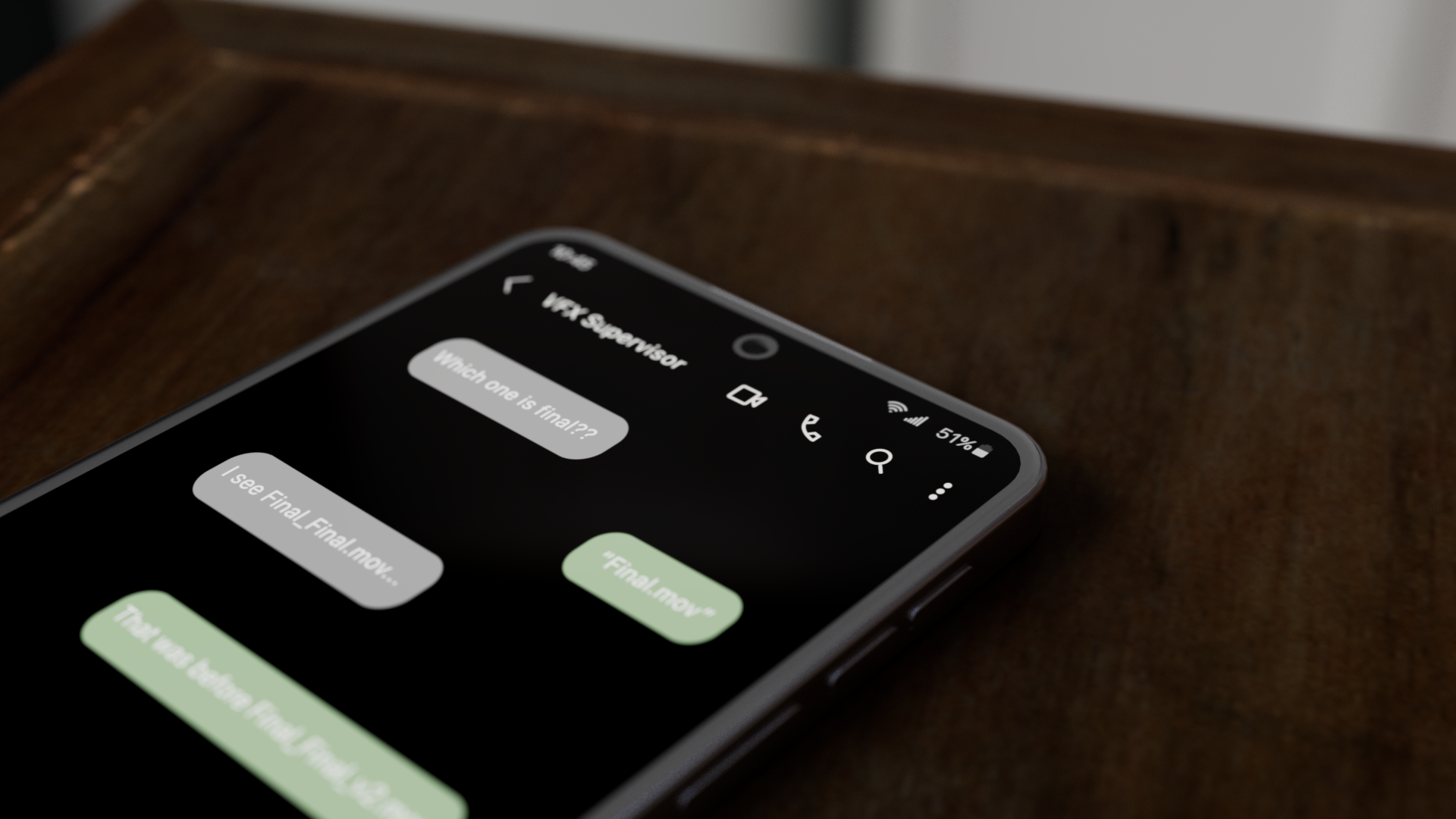
Font Recommendation
Use a UI‑native font for believability. SF Pro is ideal on iOS, but not bundled here due to licensing.
Pick a clean, familiar UI font so the screen reads like a real device at a glance.
Why this project is lightweight
100% AE‑generated shapes and solids. No external images to collect or break.
Fully vector, so you can scale freely without losing sharpness.
Easy to import into another comp or save as a versioned template.
Quick start
Import the project into your comp or open the provided master comp.
Tweak Color Controls:
Set incoming and outgoing bubble colors
Toggle Dark Mode and set Text Color
Set status bar details:
Battery percent
Time hour and minute
Wi‑Fi and Cell bars
Fit to plate:
Use Master Scale and per‑group nulls to align around notches and edges
Build conversation:
Duplicate Bubble Text + Bubble Shape as needed
Update the Bubble Shape expressions to target the new text layer
Rename the contact name layer to update its label
Notes
Animate Wi‑Fi and Cell bar checkboxes for subtle “searching signal” behavior.
You can use individual elements (time, status icons) independently in other UIs.
